START HERE / THE WORKING LOOP
From first scan to verified improvement
Answer Engine Ready is a read-only Shopify audit. It identifies evidence-backed issues and tells you where to fix them, but the change itself happens in Shopify, your theme, or the system that owns the data.
- 01Connect
Install the app and approve its two read-only Shopify scopes.
- 02Scan
Run the free baseline scan and leave the app open or return later.
- 03Review
Check the readiness score, evidence coverage, and top priorities.
- 04Fix
Open a finding and make the recommended change in Shopify.
- 05Verify
Run a comparable scan; only new evidence marks a finding resolved.
- 06Repeat
Use monthly scans, reports, history, and exports to keep improving.
The app never edits products, variants, themes, pages, policies, or storefront content for you.
SCREEN / Log in / Install
Install and connect your store
Use a Shopify account that is allowed to install apps, and have your public storefront domain ready.
- Open Answer Engine Ready.Choose Start free or Log in from the website.
- Enter your store domain.Use either
yourstore.comor the permanentyour-store.myshopify.comdomain. - Continue to Shopify.Shopify opens the correct store and shows the app authorization screen.
- Approve read-only access.The required scopes are
read_productsandread_content. No write scope is requested. - Confirm the connected store.Check the store name shown on the first-scan screen before continuing.
Your storefront must be publicly reachable. A password page or a robots policy that blocks product pages can prevent storefront evidence from being collected.
SCREEN / First scan
Create the baseline
The baseline gives you the first comparable snapshot of your catalog and storefront evidence.
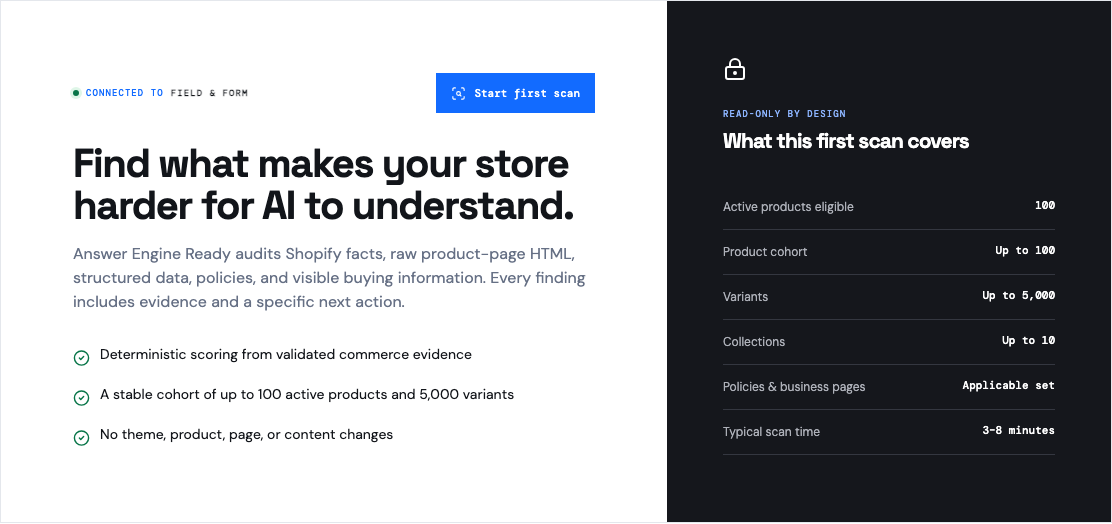
- Review the coverage panel.A scan includes a stable cohort of up to 100 active products, 5,000 variants, 10 collections, and applicable store content.
- Choose Start first scan once.The web app queues the work safely in the background; it does not run the crawl inside your browser.
- Wait for the scan report.A typical first scan takes about 3–8 minutes. You may leave the page and return later.
- Check the final status.Completed means the scan finished normally. Partial means useful results are available but some evidence could not be collected.
 Open full size
 SCREEN / Overview
Read the audit correctly
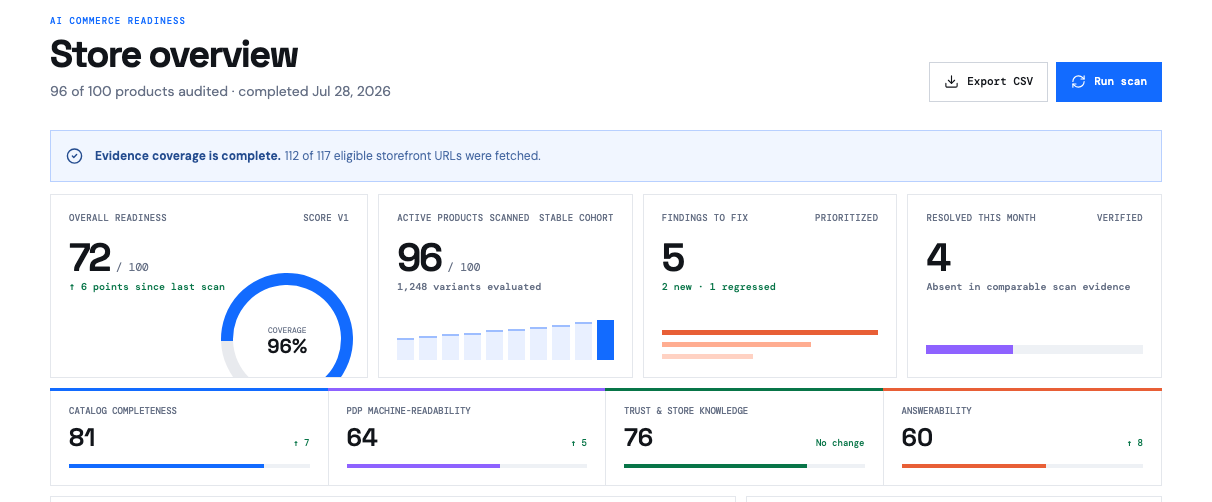
The overview separates tracking context from the work you should do next.
- Overall readiness
- A 0–100 deterministic score across the evidence that could be evaluated. Use it to track direction over comparable scans.
- Evidence coverage
- The share of eligible storefront URLs successfully fetched. Low coverage can make a score provisional or prevent a score entirely.
- Catalog completeness
- Identifiers and structured Shopify product facts needed to distinguish products and variants.
- PDP machine-readability
- Whether product pages, metadata, canonical signals, and structured product data agree.
- Trust and store knowledge
- Whether policies and store-level information are present and consistent.
- Answerability
- Only validated question-answering requirements that have enough evidence to be scored; unevaluable checks do not manufacture a perfect result.
- Findings to fix
- The current new, open, and regressed evidence-backed issues in the work queue.
- Resolved this month
- Issues that a later comparable scan verified were no longer present.
Start with Top actions, especially high-severity findings with broad affected coverage.
 Open full size
 SCREEN / Action queue
Choose the next issue to fix
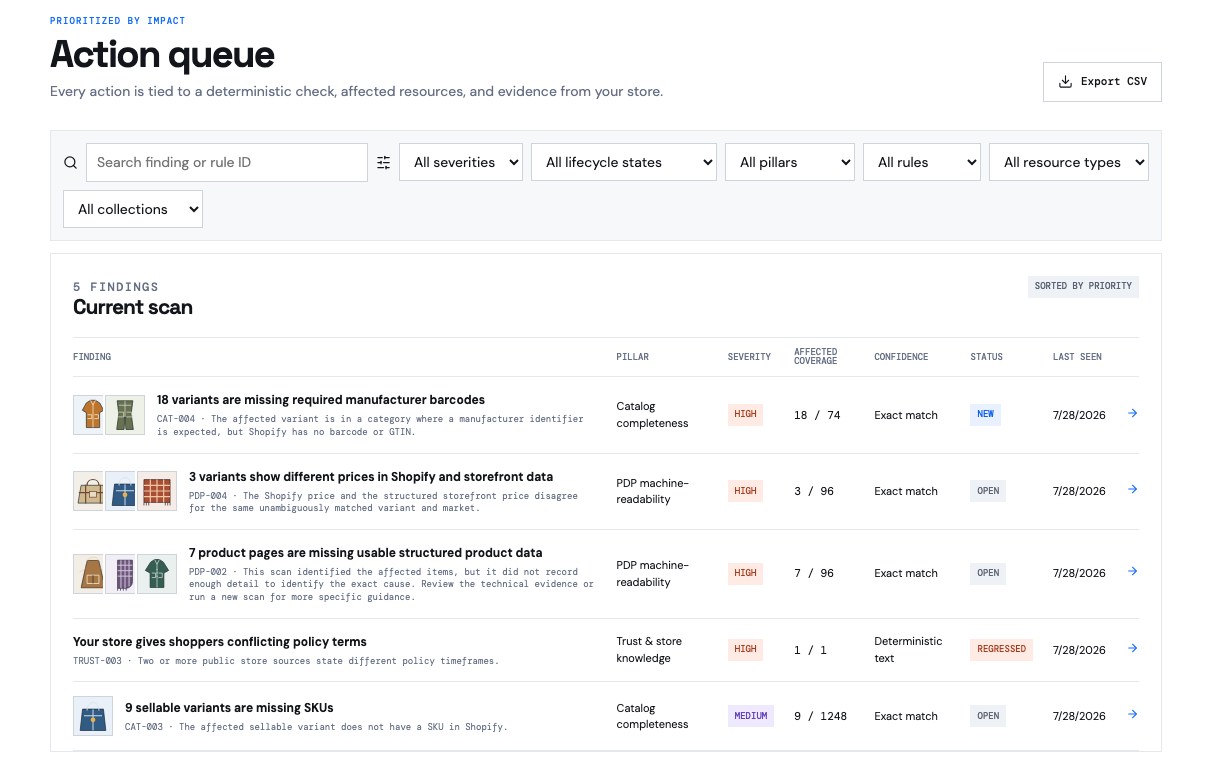
- Begin with the default order.The queue is already sorted by priority, which combines severity, affected share, and evidence confidence.
- Narrow the list when needed.Search by finding or rule ID, then filter by severity, lifecycle, pillar, rule, resource type, or collection.
- Read affected coverage as a fraction.For example, 9 / 1,248 means nine evaluated variants failed the check.
- Open the finding title.The detail page contains the evidence, owner, fix location, ordered remediation, and completion test.
- Export only when useful.Export CSV downloads the current filtered queue, making it suitable for a focused handoff.
First detected in the latest comparable scan.
Still present in consecutive comparable scans.
Verified absent by later comparable scan evidence.
Detected again after it had previously resolved.
Removed by a rule update, not by merchant remediation.
 Open full size
 SCREEN / Finding detail
Follow the remediation precisely
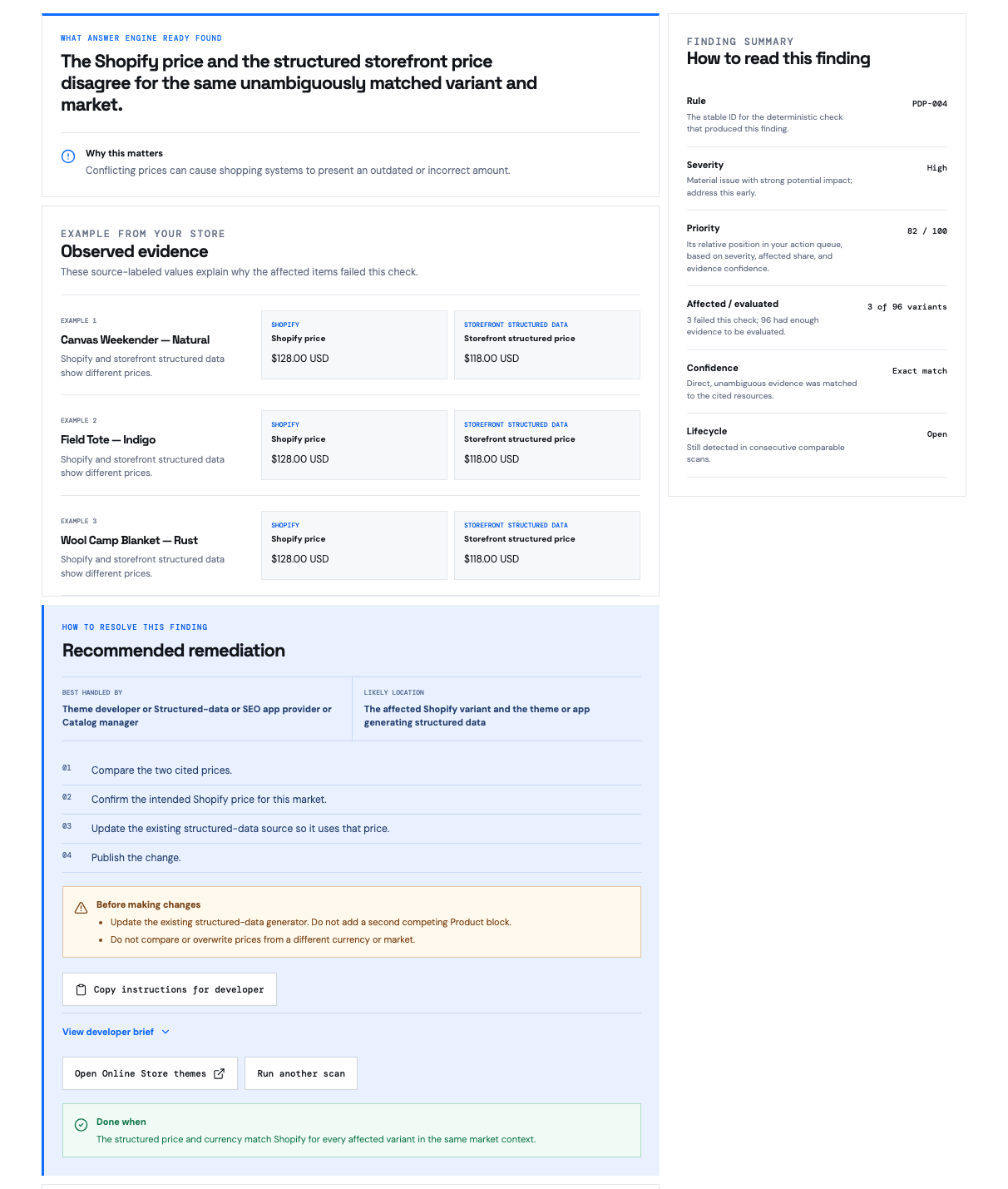
Every active finding is organized to answer five practical questions.
- What was found?Read the diagnosis and why it matters before changing anything.
- What evidence failed?Compare the source-labeled values from Shopify, the storefront page, or structured data.
- Who should fix it, and where?Use Best handled by and Likely location to route the work correctly.
- What should change?Complete the ordered remediation steps and observe every warning. Developer-owned issues may include a copyable brief.
- How will you know it is done?Use Done when as the acceptance test, then run another scan.
Acknowledging or ignoring a finding only records review state. It never changes the score. Resolution requires a later comparable scan.
 Open full size
 SCREEN / Report history / Scan report
Verify the result
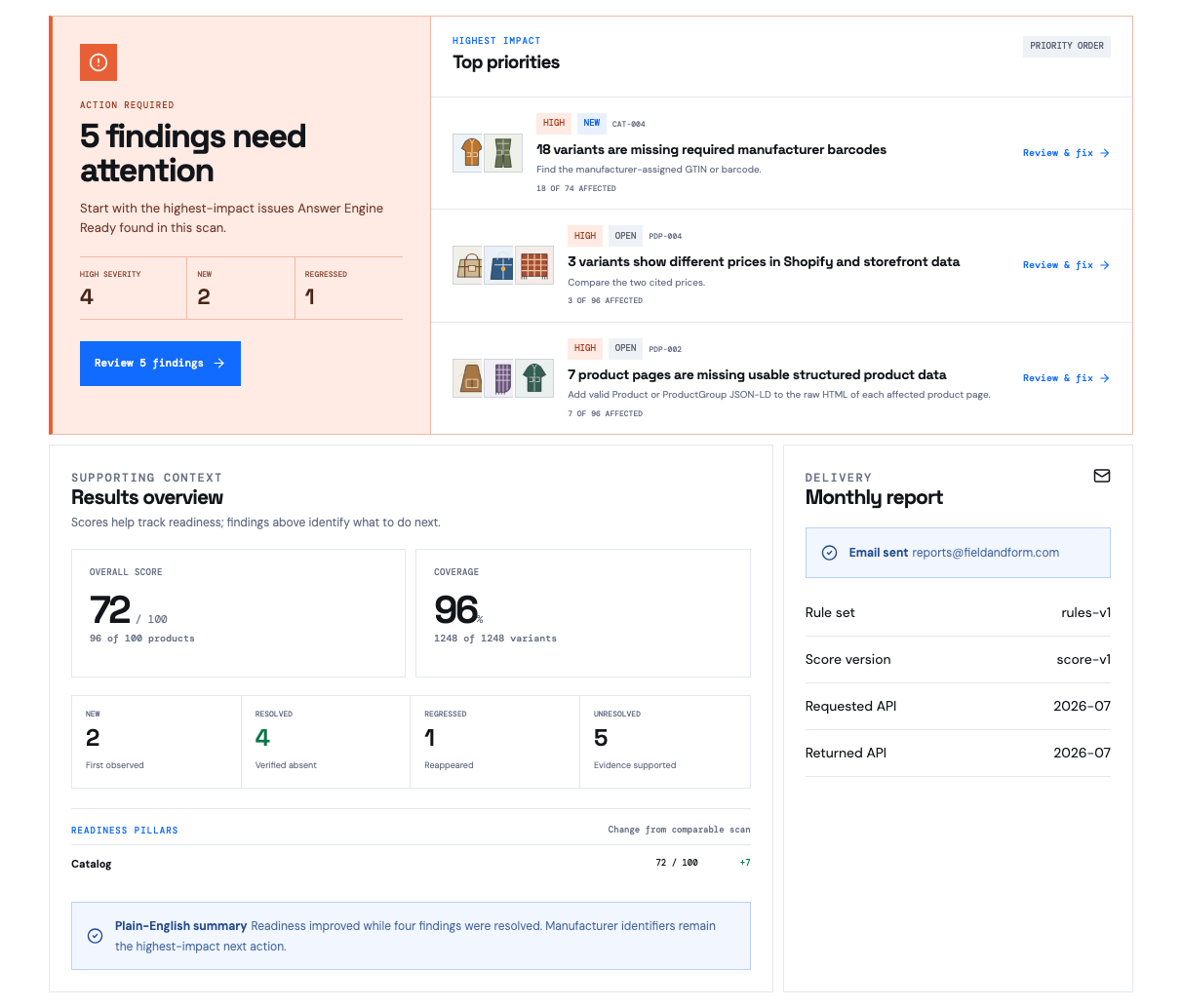
- Make the change outside Answer Engine Ready.Use Shopify Admin, your theme editor, or the upstream source named in the finding.
- Run another scan.Repeat scans are a Detailed Audits feature. The stable cohort keeps comparable evidence focused on the same resources.
- Open the completed report.Review new, resolved, regressed, and unresolved counts before focusing on the score change.
- Check for a version boundary.If rules, scoring, or the cohort changed, the reports remain available but are not presented as a direct improvement comparison.
- Continue with the next priority.Resolved findings leave the active queue; open and regressed findings remain actionable.
 Open full size
 REFERENCE / EVERY MERCHANT SCREEN
Know what each screen is for
Use this reference when you know where you are but need a precise explanation of the controls or data.
Log in / Install
Public connection screen
- Use it to
- Connect the correct Shopify store or reopen an existing installation.
- Main action
- Enter your public store domain or permanent .myshopify.com domain, then choose Continue to Shopify.
- Important detail
- Shopify completes installation and authorization. Answer Engine Ready requests read_products and read_content only.
First scan
Onboarding
- Use it to
- Confirm the connected store and establish the first readiness baseline.
- Main action
- Review the coverage limits, then choose Start first scan once.
- Important detail
- The scan is queued in the background. Repeated clicks do not create duplicate active scans.
Overview
Main dashboard
- Use it to
- See current readiness, coverage, pillar scores, trend, and the next actions to take.
- Main action
- Run a scan, open the action queue, review recent findings, or export when your plan allows it.
- Important detail
- Treat the score as tracking context and the prioritized findings as the work list.
Action queue
Detailed Audits
- Use it to
- Work through current findings in deterministic priority order.
- Main action
- Search, filter, open a finding, or export the currently filtered rows to CSV.
- Important detail
- Filters are saved in the URL. Priority combines severity, affected share, and evidence confidence.
Finding detail
Detailed Audits
- Use it to
- Understand one issue and follow its exact remediation and verification steps.
- Main action
- Open affected resources, use safe Shopify Admin links, copy a developer brief, acknowledge, or ignore for review.
- Important detail
- Acknowledge and ignore organize review work; neither changes the score nor marks the finding resolved.
Store content
Detailed Audits
- Use it to
- Review the products, collections, pages, policies, and posts checked in the latest scan.
- Main action
- Start with Needs attention or Looking good, then open an item for its merchant-facing summary.
- Important detail
- Variants stay with their parent product, and raw scan evidence remains collapsed unless you need it.
Resource detail
Detailed Audits
- Use it to
- Compare Shopify facts, visible storefront content, normalized JSON-LD, and rule outcomes for one resource.
- Main action
- Open the storefront, edit the supported object in Shopify, or inspect its scan history.
- Important detail
- Passed, failed, skipped, and unknown are separate outcomes; skipped or unknown is not the same as passed.
Report history
Detailed Audits
- Use it to
- Compare completed scans and see new, resolved, regressed, and unresolved counts over time.
- Main action
- Open any scan report to review the immutable evidence captured at that time.
- Important detail
- Scans separated by a rule, score, or cohort version boundary are preserved but not compared as improvement.
Scan report
Detailed Audits
- Use it to
- Follow an active scan or review the complete result and its highest-impact next actions.
- Main action
- Review findings from that scan, return to the overview, or inspect delivery and technical context.
- Important detail
- Queued and running reports refresh automatically. Partial reports show only the evidence successfully collected.
Plan
Shopify billing
- Use it to
- See current access and choose between Free and Detailed Audits.
- Main action
- Choose in Shopify to open Shopify’s pricing and approval screen.
- Important detail
- Shopify owns charging and plan management. Answer Engine Ready never collects card details.
Settings
Store configuration
- Use it to
- Manage monthly scan timing, email delivery, coverage information, connection status, and retained data.
- Main action
- Set the day, hour, timezone, and recipient; enable scans/reports; or request data deletion.
- Important detail
- Scheduled scans and reports require Detailed Audits. Data deletion disables future scans and cannot be undone.
Connection recovery
Shown when needed
- Use it to
- Restore missing read-only scopes, replace an unavailable token, or start fresh after data deletion.
- Main action
- Choose Reconnect Shopify and approve the requested read-only access in Shopify.
- Important detail
- Deleted Answer Engine Ready history stays deleted. Reconnecting does not edit Shopify data.
REFERENCE / RESOURCES AND SETTINGS
Inspect evidence and automate the routine
Store content and item detail
Use Store content to see what needs attention and what already looks good across products and public store pages. Open an item to see actionable checks first; technical Shopify, storefront, and structured-data evidence stays in a collapsed disclosure.
Use the Shopify action only when the resource itself is the correct editing surface. Theme and policy findings may point elsewhere.
Monthly scans and reports
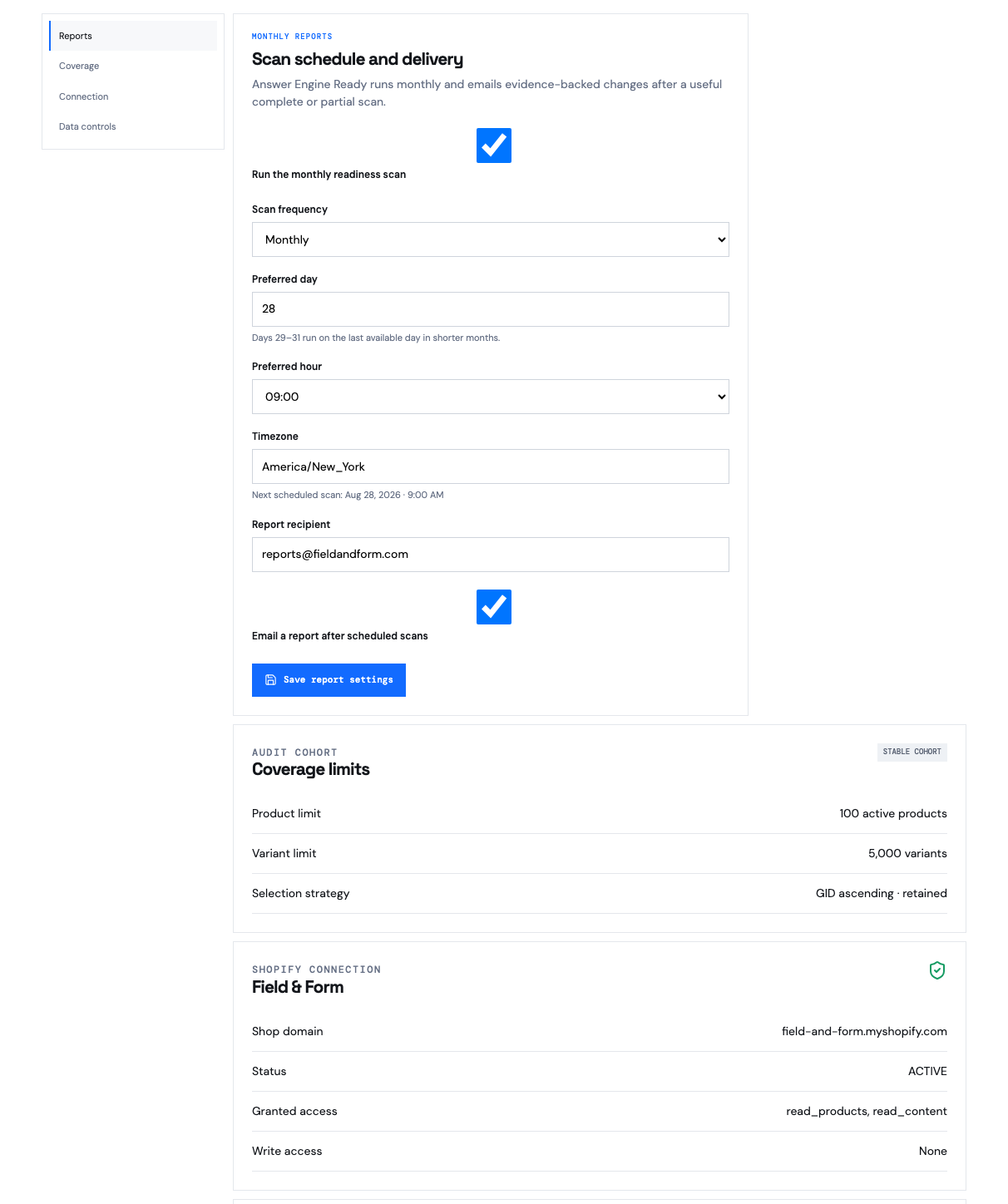
In Settings, enable the monthly scan, choose day and hour, enter an IANA timezone such as America/New_York, add the recipient, and enable email delivery.
Days 29–31 run on the last available day in shorter months. The next scheduled time is shown before you save.
 Open full size
 PLANS / SHOPIFY BILLING
Choose the level of access you need
Plans are selected, approved, and billed through Shopify. Answer Engine Ready does not collect payment-card details.
FREE
$0
Fix and verify a starter issue- One baseline readiness scan
- Full readiness breakdown
- One guided improvement
- One verification scan
DETAILED AUDITS
$499
USD / year- Detailed evidence-backed findings
- Prioritized remediation steps
- Repeat and monthly scans
- Report history and email reports
- CSV exports
HELP / COMMON STATES
Know what to do when a scan needs attention
Scan stays queued or running
Wait several minutes and reopen the scan report. Active reports refresh automatically. If it remains unchanged, send support the store domain, approximate start time, and displayed status.
Storefront is password protected
Public product-page evidence cannot be collected through a password page. Make the storefront publicly reachable, then run a new scan.
Coverage is partial or no score appears
Read the coverage banner first. Rate limits, robots rules, unavailable pages, or ambiguous mappings can reduce evidence. Partial results may still contain useful findings; insufficient coverage intentionally suppresses the overall score.
The app asks you to reconnect
Use Reconnect Shopify and approve the two read-only scopes. If retained data was deleted, reconnecting starts a new Answer Engine Ready history and does not restore deleted reports.
A finding disappeared
Clear queue filters, then check Report history. It may have resolved in a comparable scan or been retired by a rule update.
The export does not include everything
CSV export follows the current queue filters and selected scan context. Clear the filters for the complete current queue.
READY TO BEGIN?
Start with one read-only scan.
Establish the baseline, fix the highest-impact issue, and let the next comparable scan verify the improvement.